
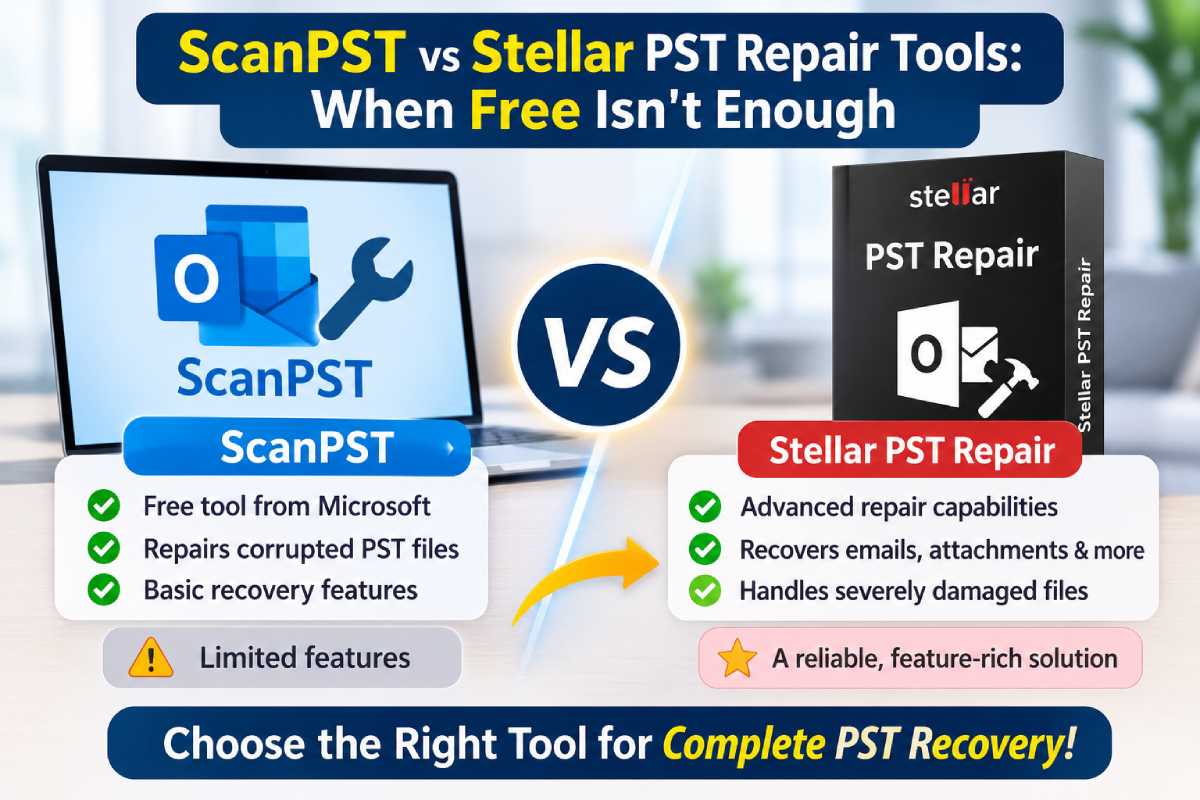
Outlook keeps your mail, calendar items and contacts in a PST file on your computer. When that file is damaged, Outlook can show error messages, freeze or fail to open the file. Microsoft’s free Inbox Repair Tool, ScanPST.exe, is the usual first step. It fixes some problems and not others. This article shows how to run ScanPST.exe, where it falls short, and what Stellar’s desktop and online PST repair tools offer when it does not work.
Table of Contents
How ScanPST.exe Works
ScanPST.exe is installed with Outlook. It scans a PST file for structural errors and tries to fix them. It repairs the original file in place, and making a backup first is optional. Microsoft’s guidance also says you may need to run the tool several times to repair a file.
Where to Find ScanPST.exe
Close Outlook, then open the folder that matches your Office installation. Paths vary by Office version and install type, so if you cannot find the file, search the Microsoft Office folder for SCANPST.EXE.
| Outlook version | Folder |
| 2016, 2019 and 2021, 32-bit Office | C:\Program Files (x86)\Microsoft Office\root\Office16 |
| 2016, 2019 and 2021, 64-bit Office | C:\Program Files\Microsoft Office\root\Office16 |
Steps to Run ScanPST.exe
1. Make a copy of your PST file and keep it somewhere safe. ScanPST.exe changes the
original file, so the copy is your safety net.
2. Close Outlook completely, along with any sync or backup software that may be using the
file. Do not force-quit Outlook. Wait for it to close on its own.
3. Press Windows + R, paste the folder path from the table above, and press Enter. Double-
click SCANPST.EXE.
4. Click Browse, select your PST file and click Open.
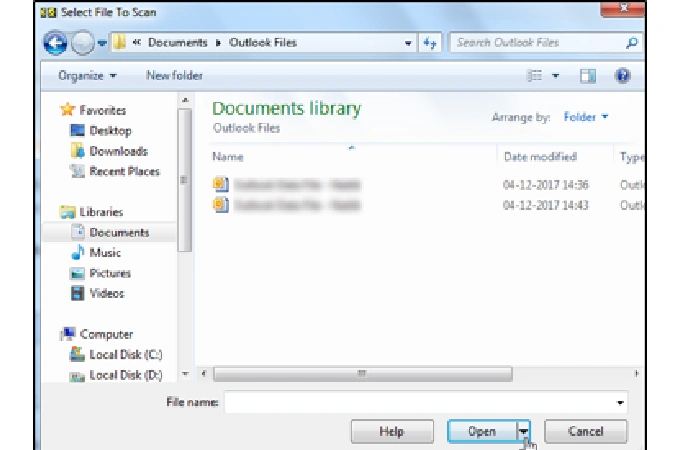
Figure 1: Selecting the PST file to scan
- Click Start.
- If the scan reports errors, tick Make backup of scanned file before repairing, then click Repair.
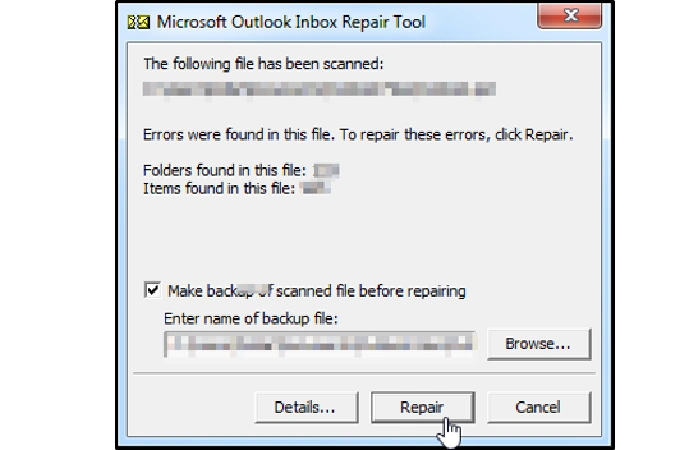
Figure 2: The backup option sits on the same screen as the Repair button
- When the Repair complete message appears, click OK.
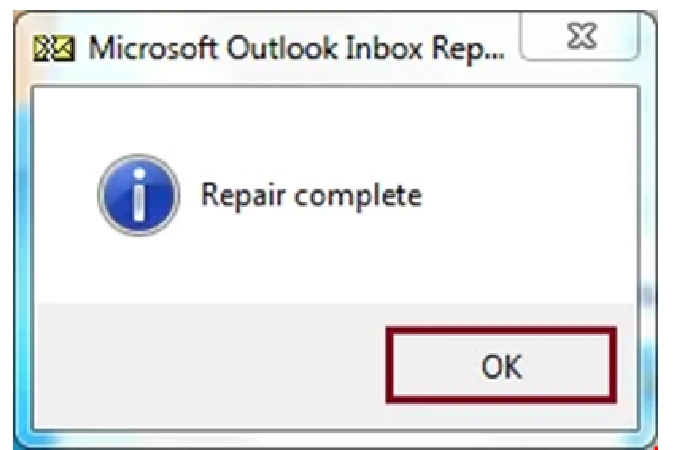
Figure 3: Repair complete message
- Run the scan again to check the file. If errors remain, repeat the repair.
- Start Outlook with the profile linked to the repaired file.
Where ScanPST.exe Falls Short
ScanPST.exe was built to fix structural errors in a PST file. Keep these limits in mind:
- Some items may not be recovered. Microsoft says the tool may not recover everything, and that you may need to run it several times.
- No preview, one file at a time. The tool repairs the original file in place, so you cannot see what it will recover first, and you select a single PST for each run.
- No Exchange mailbox data. Per Microsoft, the tool does not connect to or analyze data stored in an Exchange mailbox. It only works on the file on your computer.
- Large files. Microsoft documents no size limit for ScanPST.exe. Stellar’s product page lists ScanPST freezing or crashing, and PST files above 2 GB, among the situations where it can fail. That is Stellar’s claim, not Microsoft’s.
A large PST is not the same as a corrupt one. Microsoft’s defaults are about 2 GB for the older ANSI format and 50 GB for Unicode files in Outlook 2010 to 2016 (20 GB in Outlook 2003 and 2007). When a file reaches its limit, Outlook blocks actions such as moving items within it. That is a capacity limit, not corruption.
What to Do When ScanPST.exe Cannot Fix the File
A dedicated repair tool is not the only option. Work through these first:
- Restore a backup. A recent copy of the PST file is the simplest fix.
- Recreate the OST file. For Exchange accounts, Microsoft says you can delete the .ost file and Outlook recreates it the next time it opens.
- Check the profile. Error 0x8004010F (“Outlook data file cannot be accessed”) can come from a corrupted profile, not the PST. Microsoft’s fix for Outlook 2010 and 2013 is a new profile with the existing data file attached.
- Use a dedicated PST repair tool. This makes sense when the file holds data you cannot get back another way.
Stellar Repair for Outlook
Stellar Repair for Outlook is desktop software that repairs PST files. According to Stellar’s product page, it offers the following:
- Repairs PST files with no file size limit, including encrypted and password-protected files, in read-only mode so the original PST is not modified.
- Recovers emails, attachments, contacts and calendar items, plus deleted items if they have not been overwritten. Deleted items are highlighted in red after the scan.
- Previews recovered items before you save, and saves to PST, EML, MSG, RTF, HTML and PDF. The Technician and Toolkit editions also save to MBOX.
- Repairs multiple PST files in a batch, and saves scan results in a DAT file so you can finish the repair later.
- Filters items by date range or email address (Professional and Toolkit editions). Splits the recovered PST by size, date or email ID (Technician and Toolkit editions).
The free trial scans and previews only. Saving needs a license, and Stellar’s FAQ says a licensed copy of Outlook must be installed to save repaired data to a new PST.
Stellar Online PST Repair
Only a few vendors repair PST files in the browser, and they work very differently. Here’s what the other two offer, based on their own pages:
- Recovery Toolbox (Outlook PST Repair Online): no file size limit, priced per gigabyte of the original file. The free check shows the folder tree and gives you a demo PST with five items per folder. You must enter an email address, and the site gives two different deletion policies: after recovery on one page, after 30 days on another.
- OfficeRecovery for Outlook Online: full results are free, but only after 14 to 28 days. The demo holds just three messages and no attachments, the page lists Outlook versions only up to 2010, and it doesn’t say how long uploaded files are kept.
Why Stellar stands out: it’s the only one of the three that repairs a file completely free and right away, as long as the PST is 500 MB or smaller. Above that the price is flat, $29.99 per file up to 5 GB, so you know the cost before you upload. It covers PSTs from Outlook 2003 to 2024 and states exactly when files are deleted. The trade-off is the 5 GB cap, where Recovery Toolbox has none.
If you would rather not install software, Stellar Online PST Repair repairs a PST file in your browser:
- Sign in and upload the damaged PST file.
- Stellar analyzes the file. Stellar says this happens in a fully automated environment with no human touchpoints.
- Preview the recovered folder structure and item counts, then download the repaired PST file.
What to know before you use it:
- No software or Outlook installation is needed. It works in Chrome, Firefox, Edge and Safari, and supports ANSI and Unicode PST files from Outlook 2003 to 2024.
- The Free plan repairs one PST file up to 500 MB. Premium covers files up to 5 GB at $29.99 per file.
- The preview shows folders and item counts, not individual emails. The output is a repaired PST file.
- Stellar says repaired files are available for download for 24 hours on the Free plan and 48 hours on Premium, and are deleted after that.
- Your file is uploaded to Stellar’s servers, so check your data policy before uploading a mailbox with sensitive data.
ScanPST.exe vs Stellar Repair for Outlook vs Stellar Online PST Repair
| Feature | ScanPST.exe | Stellar Repair for Outlook | Stellar Online PST Repair |
| Cost | Free with Outlook | Paid license; free trial scans and previews | Free for one PST up to 500 MB; $29.99 per file on Premium |
| Installation | None, installed with Outlook | Install on your PC | None, runs in the browser |
| Outlook needed | Yes, it ships with Outlook | Licensed Outlook needed to save to a new PST | No |
| Where the file is processed | Your PC | Your PC | Stellar’s servers (file is uploaded) |
| File size | No limit documented by Microsoft | No file size limit, per Stellar | Up to 500 MB (Free), up to 5 GB (Premium) |
| Original file | Repaired in place; backup is optional | Read-only repair; original not modified, per Stellar | Repaired PST is a separate download |
| Preview before saving | No | Yes | Yes: folder structure and item counts |
| Multiple files | One file per run | Batch repair of multiple PST files | Free: one PST file; Premium: priced per file |
| Output | Repaired PST, in place | PST, EML, MSG, RTF, HTML, PDF; MBOX in Technician and Toolkit | Repaired PST |
| Best for | Light structural errors | Large or damaged files, encrypted PSTs, batch repair | One small file when you prefer not to install software |
Conclusion
ScanPST.exe is a reasonable first step for structural errors, as long as you copy the file first and tick the backup option. It checks one file at a time, repairs in place, shows no preview and does not check Exchange mailbox data. When it cannot fix the file, restore a backup, recreate the OST file for an Exchange account, or check for a profile problem. If the data still matters, a dedicated tool is the next step: Stellar Repair for Outlook for large or encrypted PST files and batch repair, or Stellar Online PST Repair for one smaller file when you would rather not install software.